On this page
Short answer
You can't type into a PDF when it has no form fields, or when its fields are a kind your viewer can't show. Fillable PDFs have built-in AcroForm fields that most readers support. XFA forms only work properly in some desktop readers. Flat PDFs and scans have no fields at all, so you need to add fields, fill on paper, or use a tool that detects the fields for you.
Key takeaways
- Fillable (AcroForm) PDFs have real fields; most PDF readers let you type into them.
- XFA forms often show a 'Please wait' message in browsers and phone apps; open them in a desktop reader that supports XFA.
- Flat PDFs look like forms but are just text and lines; there's nothing to type into.
- Scans are pictures of paper; even the text isn't text until something reads it.
- AI field detection can find and fill fields on flat PDFs and scans.
You've downloaded the form, opened it, clicked on the first blank, and nothing happens. Or your browser shows a grey page that says "Please wait..." and never loads. Or a client has emailed you a phone photo of a paper form and asked you to "just fill it in." All three are the same underlying problem: the PDF isn't the kind you think it is.
This guide explains the four kinds of PDF form you'll meet, how to tell them apart in two minutes, and how each one can be filled. It's part of our guide to filling PDF forms automatically.
Why can't I type into this PDF form?
Because the PDF has no form fields you can reach. Either it's a flat PDF or a scan, so the "boxes" are just lines printed on the page, or it uses XFA fields that your browser or phone app can't display. Open the file in a desktop PDF reader. If you still can't click into the blanks, it's flat.
Here are the four types side by side:
| Type | What's inside | Can you type into it? | Typical source |
|---|---|---|---|
| Fillable (AcroForm) | Real form fields stored in the file | Yes, in most PDF readers | Government, bank and insurer forms |
| XFA form | Fields defined in an XML layer | Only in readers that support XFA | Older government and enterprise forms |
| Flat PDF | Text and lines, no fields | No | Forms exported from Word, "print to PDF" |
| Scan or photo | An image of paper | No, and the text isn't text yet | Clients, post, old archives |
What is a fillable PDF?
A fillable PDF contains interactive form fields (text boxes, checkboxes, radio buttons, dropdowns and signature fields) stored inside the file using the PDF standard's AcroForm structure. Click a field and you get a cursor. Software can fill the same fields from data. This is the easiest kind of form to complete, by hand or automatically.
Fillable PDFs still have quirks:
- Field names can be cryptic. On screen you see "Date of birth"; inside the file the field may be called
Text17. That matters if you're filling from a spreadsheet. - Checkboxes have hidden values. A tick may be stored as
Yes,Onor1, depending on how the form was built. - Some fields are locked or calculated. Totals and dates can be filled for you, or protected from editing.
- Some readers ignore formatting rules. A field that limits you to eight characters in one reader may not in another.
What is an XFA form, and why does it say "Please wait"?
XFA, the XML Forms Architecture, is an older way of building dynamic forms inside a PDF. Many browsers, phone apps and Mac's built-in viewer can't display XFA, so you see a "Please wait..." page warning that your viewer may not support this type of document. The form is there; your viewer can't draw it.
What to do:
- Download the file rather than opening it in the browser tab.
- Open it in a desktop PDF reader that supports XFA. The agency's instructions usually name one.
- Don't "print to PDF" to fix it. That flattens the form and throws away the fields.
XFA is deprecated in PDF 2.0, the current edition of the ISO 32000 PDF standard, and newer forms generally use AcroForm fields instead. Some older forms carry both: an XFA layer and ordinary AcroForm fields underneath. AppliFlo's library copies of official forms are the agency PDFs prepared for filling, with pages and fields untouched, so they open in ordinary viewers.
What is a flat PDF?
A flat PDF looks exactly like a form (labels, lines and empty boxes) but contains no fields. It's usually a Word document saved as PDF, a form that has been "printed to PDF", or a fillable form that was flattened after filling. The text is real text, so you can search and copy it, but there's nothing to type into.
You can still fill a flat PDF:
- Add text on top using the "add text" or "fill and sign" tool in many free PDF readers. Fine for one copy; slow for many.
- Rebuild it as a fillable form in a PDF editor by drawing fields over each blank. Worth it only for a form you use often.
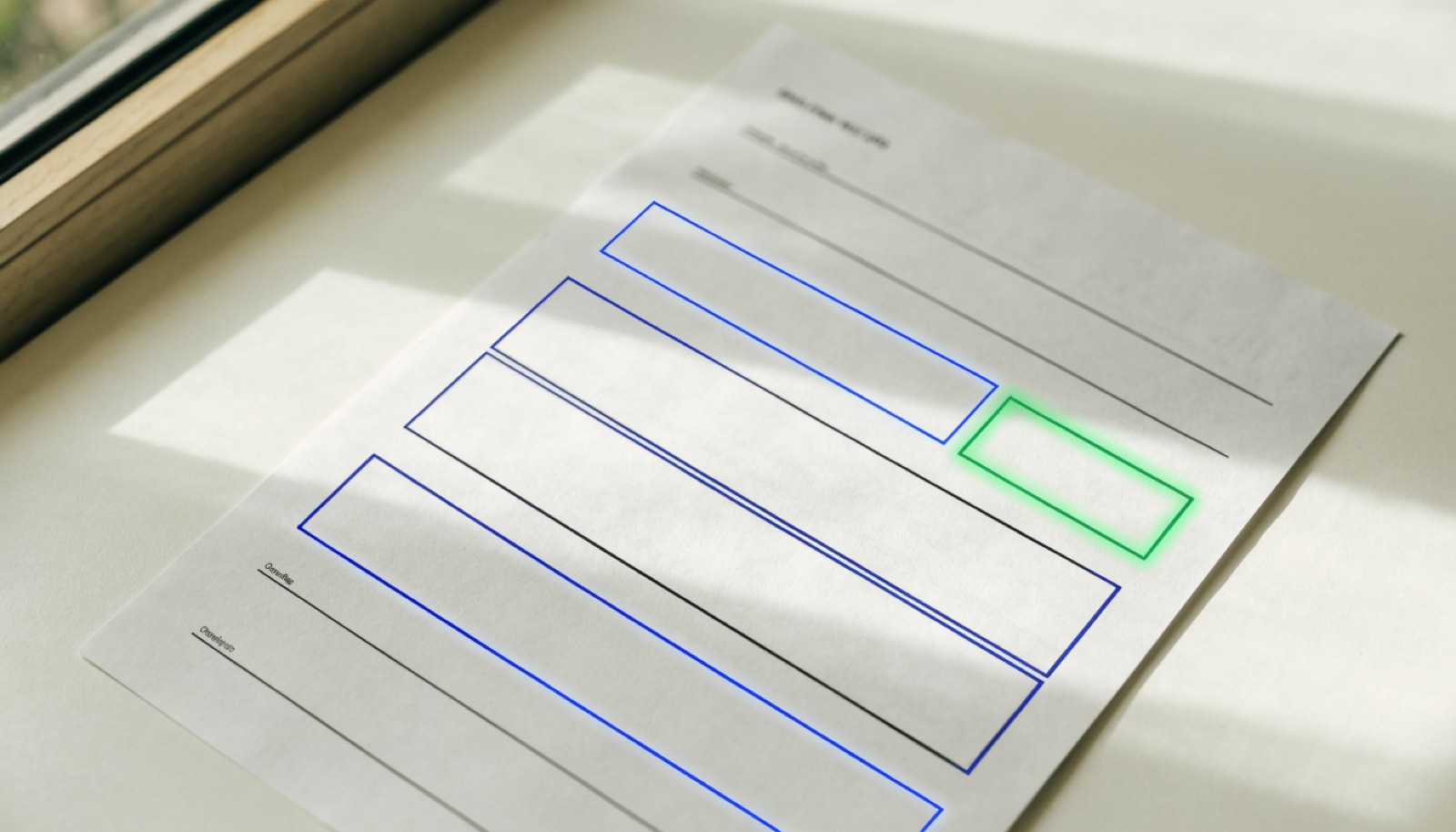
- Use AI field detection, which finds each label and blank on the page and places fields for you.
Can I fill a scanned form?
Yes, but a scan or phone photo is a picture of paper, so there are no fields and no real text until something reads the image. You can print it and write by hand, add text boxes on top, or use an AI form filler that detects the fields, including checkboxes, date boxes and signature lines.
Scans add their own problems:
- Skewed pages. A slightly rotated photo puts every value a little off its line.
- Low resolution. Small print and tick boxes blur.
- Shadows and folds. Parts of the page are hard to read for people and software alike.
- Handwriting already on the page. Something has to tell blanks from answers.
How can I tell which type of PDF I have?
Run a quick two-minute test. Open the file in a desktop PDF reader, click into a blank, then try to select some text. The combination of what happens tells you whether the PDF is fillable, XFA, flat or scanned, and therefore which way to fill it.
- Open it in a desktop PDF reader, not a browser tab.
- Do you see "Please wait..." instead of the form? It's XFA. Use a reader that supports XFA.
- Click into a blank. A cursor or highlighted field means it's fillable.
- No cursor? Try to select a word of the printed text. If the text highlights, it's a flat PDF.
- Nothing highlights? It's a scan or an image.
How can each type of PDF be filled?
Fillable PDFs can be typed into or filled from data directly. XFA forms need a reader that supports them, or a version without the XFA layer. Flat PDFs and scans need fields added, by hand or by AI detection, before anything can be filled. Printing and writing by hand still works for all four, unless the agency says otherwise.
| Type | By hand | Automatically |
|---|---|---|
| Fillable | Type in any good PDF reader | Map data to the existing field names |
| XFA | A desktop reader that supports XFA | Use a copy prepared without the XFA layer |
| Flat | Add text on top, or print | AI field detection, or draw a template once |
| Scan | Print and write, or add text on top | AI field detection on the image |
AppliFlo's PDF and Word forms handle all four. If a PDF already has fillable fields, AppliFlo uses them as they are. If it's flat, a Word file or a phone scan, AI finds every field (text boxes, dates split into boxes, Yes/No choices that belong together, signature lines) and fills them from your client's record, with anything uncertain flagged for you. Official library forms are already set up and never use AI pages.
If you deal with Australian visa forms in particular, our guide to Australian visa forms lists which Home Affairs forms you'll need and where to get the current editions.
Questions people ask
Why can't I type into this PDF form?
Usually because the PDF has no form fields: it's a flat PDF or a scan, so there's nothing to click into. The other common cause is an XFA form opened in a browser or phone app that can't display XFA. Try opening the file in a desktop PDF reader. If you still can't click into the blanks, the PDF is flat.
What is a fillable PDF?
A fillable PDF contains interactive form fields, such as text boxes, checkboxes, radio buttons and dropdowns, stored inside the file using the PDF standard's AcroForm structure. You can click into a field and type, and software can fill the fields from data. Many government and bank forms are published as fillable PDFs.
What is an XFA form?
XFA, the XML Forms Architecture, is an older way of building dynamic forms inside a PDF. Many browsers and mobile PDF apps can't display it, so you may see a 'Please wait' message instead of the form. XFA is deprecated in PDF 2.0. Open XFA forms in a desktop reader that supports them, or use a version without XFA.
Can I fill a scanned form?
Yes, but not by typing into it directly, because a scan is an image with no fields. You can print it and fill it by hand, add text boxes on top in a PDF editor, or use an AI form filler that detects the fields on the scan, including checkboxes and signature lines, and fills them from your data.
How do I fill a PDF form for free?
For a fillable PDF, a free desktop PDF reader is usually enough: open it, click into each field and type. For a flat PDF, many free editors let you add text on top of the page. For a scan, printing and writing by hand is still a valid option, unless the form says otherwise. Check the agency's instructions first.